QRoodlePaint a picture into a QR code, square by square
A QR code looks like a strict pattern, but it carries error correction — extra
data that lets a scanner rebuild what is missing. That is why a code can lose
some of its squares and still scan. It also means there is room to draw. The hard
part is knowing how far you can go before the code stops working.
QRoodle turns that into a drawing tool. You make a code from a URL or text, then
swap its squares between black and white or paint them in color. Every time you
paint, the app reads the colors on the screen and shows whether the code can still
be read, so you find out right away instead of after you have printed it. The
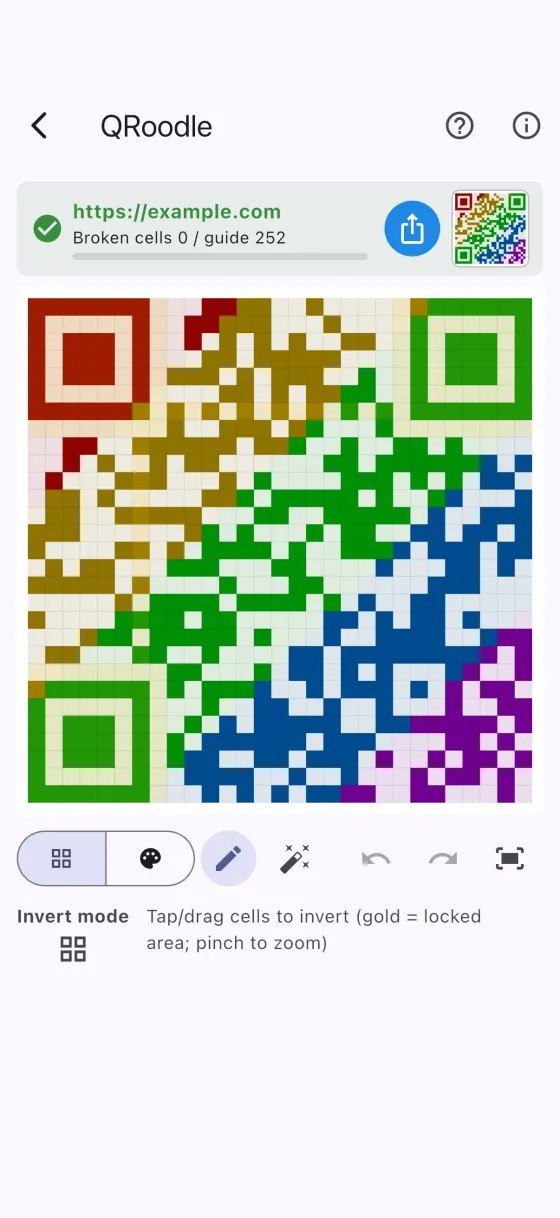
parts a scanner needs to find the code, such as the corner position markers, are
shown in gold and can't be inverted, so they can't be broken by accident.
The browser version needs no sign-up and nothing to install — your drawing stays
in your browser. An app for iPhone and iPad is on the way.
Inside the app
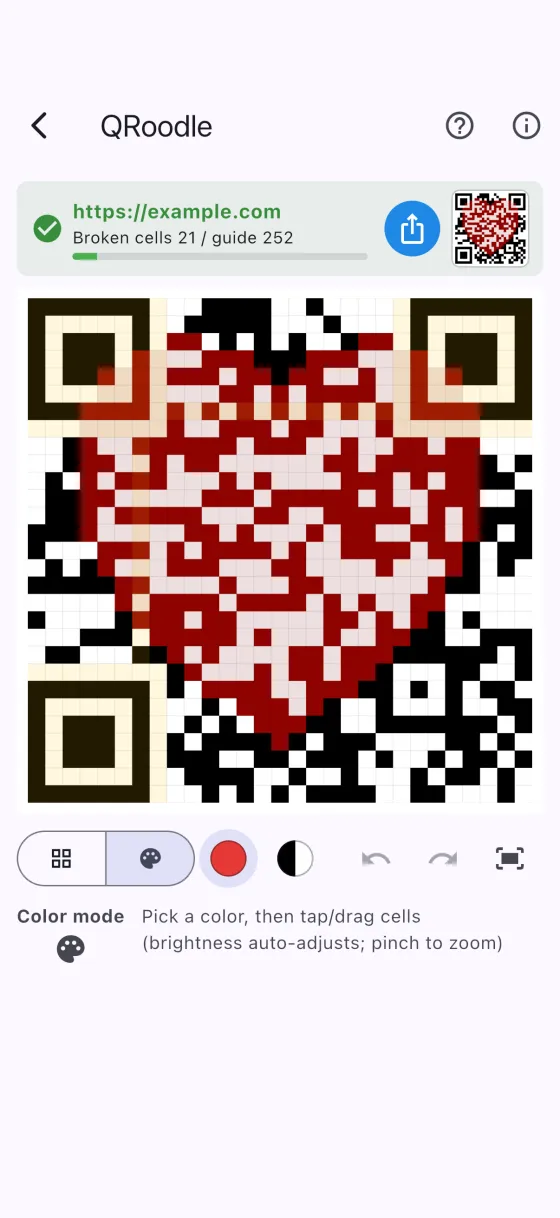
Color mode. The check at the top reads the code again after every
stroke.Painting in color keeps each square light or dark, so the broken-cell
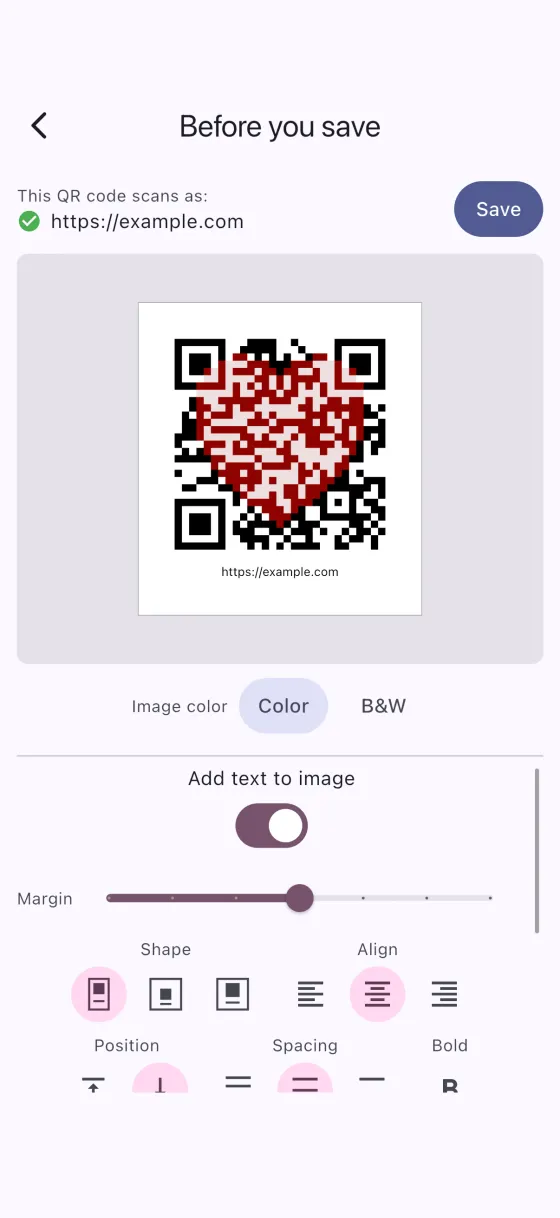
count stays at zero.Before you save. Check the finished image and add the code's content
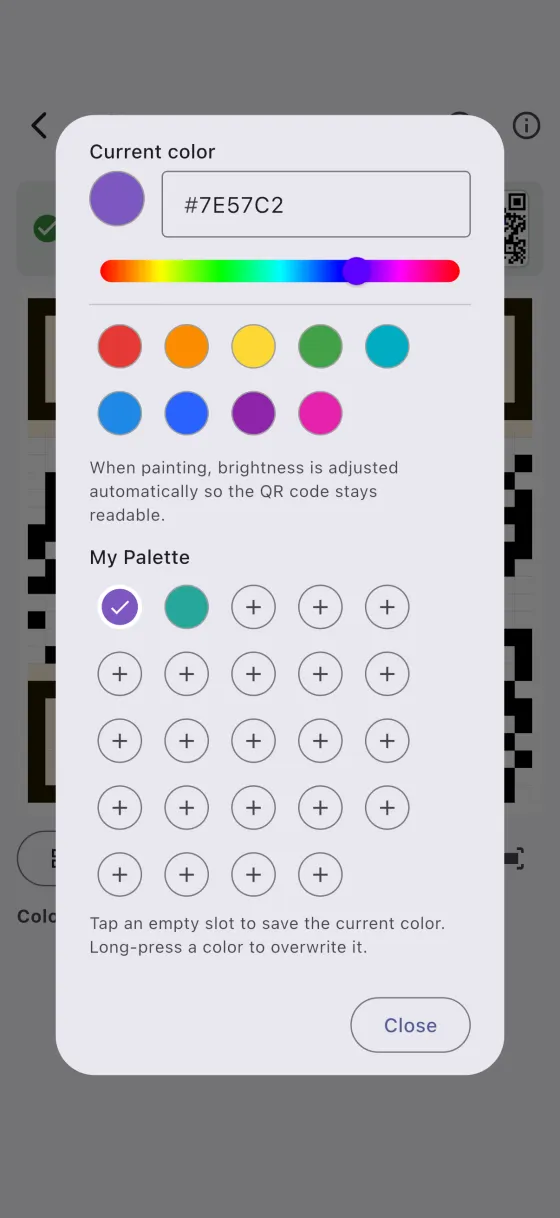
as text.Picking a color: presets, a hue slider, a color code, and My
Palette.
Drawing a picture into a QR code
A heart, a star, the initial of a shop, a pattern in your brand colors — what works
best is a simple shape with clear edges, because each square of the code becomes one
pixel of the picture.
Type a URL or text into the field and tap Generate. The code is
made with error correction level H, the strongest, which leaves the most room for
drawing. Generating again replaces your current drawing, so the app asks before it
does.
Choose a mode. Color paints squares in a color you pick, and
adjusts the brightness automatically so each square stays as light or as dark as the
scanner expects. Invert swaps squares between black and white.
Tap squares one at a time, or drag across them in one stroke. For small squares,
zoom in with two fingers, or with the + and − buttons.
Watch the check at the top after each stroke. If it turns to
Not readable, use Undo, or switch to
Restore and trace the squares back to the original black and white.
The Eraser removes only the color and leaves your inverted squares
as they are.
When the picture is done, tap Save to open the
Before you save screen.
Below the result, the app counts the squares you have inverted and shows a guide of
about 30% of all squares. The guide is a rough budget; the check above it is what
decides. Squares you only paint in color are not counted.
Putting the address under the code
A decorated code looks less like a link than a plain one, and people may not know
where it leads until they scan it. On the Before you save screen,
Add text to image writes the code's content — the URL or text it
holds — into the saved image as ordinary text. The text is part of the image, not of
the code, so it does not change what the code says.
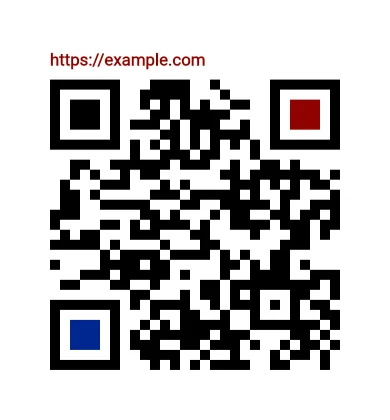
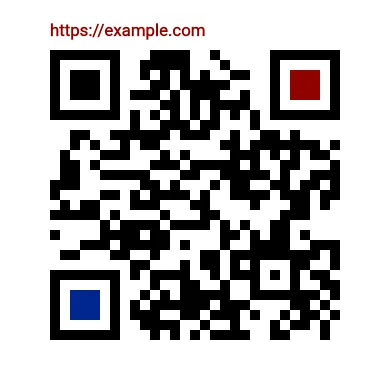
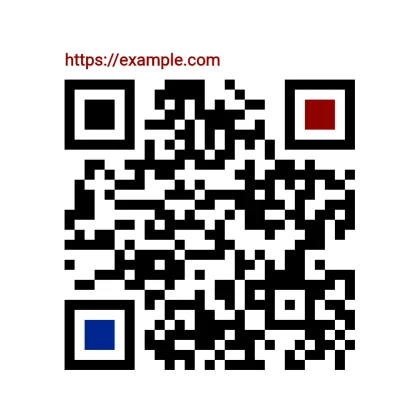
There are three shapes, and they suit different places:
Rectangle — the image grows taller by the height of the text.
The simplest choice when the image goes into a document or a slide.
Square (QR centered) — the code stays exactly in the middle, with
the same white space on all four sides, and the text sits inside that space. Useful
where a square image is expected, such as a profile picture or a post.
Square (QR and text centered) — the code and the text are centered
together as one block, with white added on the left and right.
RectangleSquare (QR centered)Square (QR and text centered)
Turn on Add text to image and pick a shape.
Choose Position (text on top or on the bottom),
Align (left, center or right), and Spacing between
the code and the text.
Adjust the Margin, turn on Bold if you like, and
pick a Text color. Image color switches the whole
image between color and black and white.
Look at the preview. If the finished image can't be scanned, the screen says so
and suggests more spacing or margin — text placed close to the code can confuse some
cameras.
Tap Save. In a browser on a computer, the PNG image downloads
straight away. On a phone, the browser's share sheet opens, where you can save or
send the image; browsers without a share sheet download it instead.
The readable / not readable result is the app's own check: it reads exactly the
colors on the screen, with a white margin added and without blur, glare or uneven
light. A real camera or a print can give a different result, so before you print or
share the image, scan it with the camera or scanner app you will actually use.
Colors you come back to
A picture often uses the same few colors again and again — the colors of a logo, a
team, or a season. The color picker keeps them close.
Open the color button in Color mode. Pick one of the nine preset colors, drag the
hue slider, or type a 6-digit color code such as E53935.
Tap an empty slot in My Palette to keep the current color there.
My Palette holds up to 24 colors.
To replace a saved color, long-press it; the app asks before it overwrites the
slot.
Note: QRoodle makes and decorates QR codes; it does not scan QR
codes with a camera, and it does not place a logo or photo in the center of a code.
Whether a code can be read always depends on the camera, the print and the light,
so check the finished image before you use it. QR Code is a registered trademark
of DENSO WAVE INCORPORATED.
What else it does
Readability check
After every stroke, the app decodes the colors on the screen and shows
whether the code can be read, together with its content.
Locked squares
Parts the scanner needs, such as the corner position markers, are shown in
gold. They can't be inverted, but you can still color them.
Undo and Redo
Step back and forward through your strokes. A drag counts as one step.
Pick up where you left off
Your last drawing is kept. Next time, tap Back to your drawing to
continue. In the browser version it is stored in your browser, so clearing your
browser data deletes it.
Dark Mode
The white on screen is slightly dimmed to reduce eye strain. The colors that
will be saved are shown on the Before you save screen.
Privacy
No account and no server. Your drawings are never sent anywhere.
Languages
Fourteen, following your device language automatically.
Price
Free. No account and no subscription, and nothing is ever bought with
money.
The support page walks through the same steps in
more detail, and answers what happens to your drawings.
The QRoodle button in the header jumps straight to the app. An app for iPhone and
iPad is coming to the App Store.


 QRoodlePaint a picture into a QR code, square by square